
VEIKK VK1200
4.2Editor score
11.6 inch LED screen
8192 pressure levels
Tilt function support
2 pens included
Finding an affordable pen display can transform your digital art workflow without breaking the bank. These devices let you draw directly on the screen, offering a natural feel that mouse-based programs cannot match.
We evaluated ten top-rated models based on screen quality, pressure levels, connectivity options, and software support. Our analysis highlights which tablets deliver premium features at budget-friendly price points for creators.
Each selection below showcases specific strengths like color gamut, shortcut keys, or standalone capability. Please note that pricing and availability may change over time so check current listings before purchasing.
4.2Editor score

4.4Editor score

4.5Editor score
As an Amazon Associate we earn from qualifying purchases.
Here is a side-by-side comparison of all ten models to help you quickly identify key specifications and features that match your creative needs.




The XP-PEN Artist12 earns its spot as our top recommendation due to its balanced blend of performance and affordability. With a solid 4.4 rating, it is a reliable choice for artists entering digital work or seeking an affordable second display.
We may earn a commission when you buy through this link, at no additional cost to you.
Its 11.6-inch HD IPS display offers 72% NTSC color coverage ensuring your artwork looks true to life. The 8192-level pressure sensitivity provides smooth strokes while the 6 shortcut keys streamline your workflow without needing to reach for the keyboard.
While the pen feels natural and battery-free you do need a computer to power it. The included gloves and nibs add value but setup may require adapters depending on your laptop ports.
If you want a proven pen display that supports most creative software and comes with strong warranty support this model is the best starting point for your digital art journey.
The 100% SRGB coverage ensures vibrant colors match your final output closely.
Program keys for zooming and tool changes to maintain creative focus.
We may earn a commission when you buy through this link, at no additional cost to you.
VEIKK VK1200 V2 stands out for its full-laminated technology that reduces parallax and offers a paper-like feel. It delivers premium specs at a budget-friendly price making it ideal for students or hobbyists.
We may earn a commission when you buy through this link, at no additional cost to you.
Its anti-glare glass surface protects against scratches while minimizing reflections during use. The tilt function and 8192 pressure levels allow for nuanced shading and line weight control that professionals appreciate.
You do need a host computer to run this display and driver customization is relatively simple. However the single USB-C cable setup makes connecting to laptops much easier than older multi-cable models.
This model is perfect if you prioritize screen clarity and portability over advanced software integration. It is a solid foundation for learning digital illustration on a budget.
Full lamination brings the pen tip closer to the cursor for precise drawing.
Metal casing and scratch-resistant glass ensure long-term use without wear.
We may earn a commission when you buy through this link, at no additional cost to you.
GAOMON PD1161 offers a robust set of shortcut keys and pen buttons that boost efficiency for complex tasks. Its matte film reduces glare and provides a tactile surface many artists prefer.
We may earn a commission when you buy through this link, at no additional cost to you.
The AP50 stylus is battery-free and includes tilt recognition for shading effects. With 8192 pressure levels and 16.7 million colors this display handles detailed digital painting with ease.
Users should note that this device requires both HDMI and USB-A ports so adapters may be needed for modern laptops. Also the included power adapter ensures stable performance but adds to the setup bulk.
This model is excellent for power users who want quick access to functions without interrupting their creative flow. It is also great for online education and remote work scenarios.
Program keys to switch brushes or layers with a single press.
The pre-installed matte film mimics traditional paper texture.
We may earn a commission when you buy through this link, at no additional cost to you.
The Artisul D16 offers a generous 15.6-inch screen that gives artists more room to work comfortably. Its full-laminated design ensures accurate cursor placement and vibrant visuals for complex projects.
We may earn a commission when you buy through this link, at no additional cost to you.
With a quick dial for brush sizing and seven programmable hotkeys you can manage tools without breaking focus. The P58B stylus supports 8192 pressure levels for realistic strokes.
Since this is a refurbished model inspect the unit upon arrival. You will need both HDMI and USB ports to run it properly but the larger canvas makes it worth the effort.
Ideal for those who find smaller screens restrictive this model provides professional-grade space at an accessible price point. It is a great choice for detailed graphic design.
The quick dial allows instant size changes without menu navigation.
76% Adobe RGB gamut delivers rich tones and true-to-life shading.
We may earn a commission when you buy through this link, at no additional cost to you.
HUION Kamvas 13 Gen 3 raises the bar with its Advanced PenTech 4.0 and 16384 pressure levels for ultra-smooth control. The full-laminated Canvas Glass 2.0 eliminates glare and improves accuracy.
We may earn a commission when you buy through this link, at no additional cost to you.
Dual dials provide precise brush size and opacity control while the screen covers 99% sRGB for professional color accuracy. USB-C single cable connectivity simplifies setup significantly.
While it is more expensive than other models the factory calibration report ensures consistent colors out of the box. You do need a computer to run it but the workflow is streamlined.
If you need premium color fidelity and natural pen response this model justifies the extra investment. It is perfect for professional illustrators and designers.
Delta E less than 1.5 ensures colors match industry standards.
Single USB-C cable handles data and power without extra adapters.
We may earn a commission when you buy through this link, at no additional cost to you.
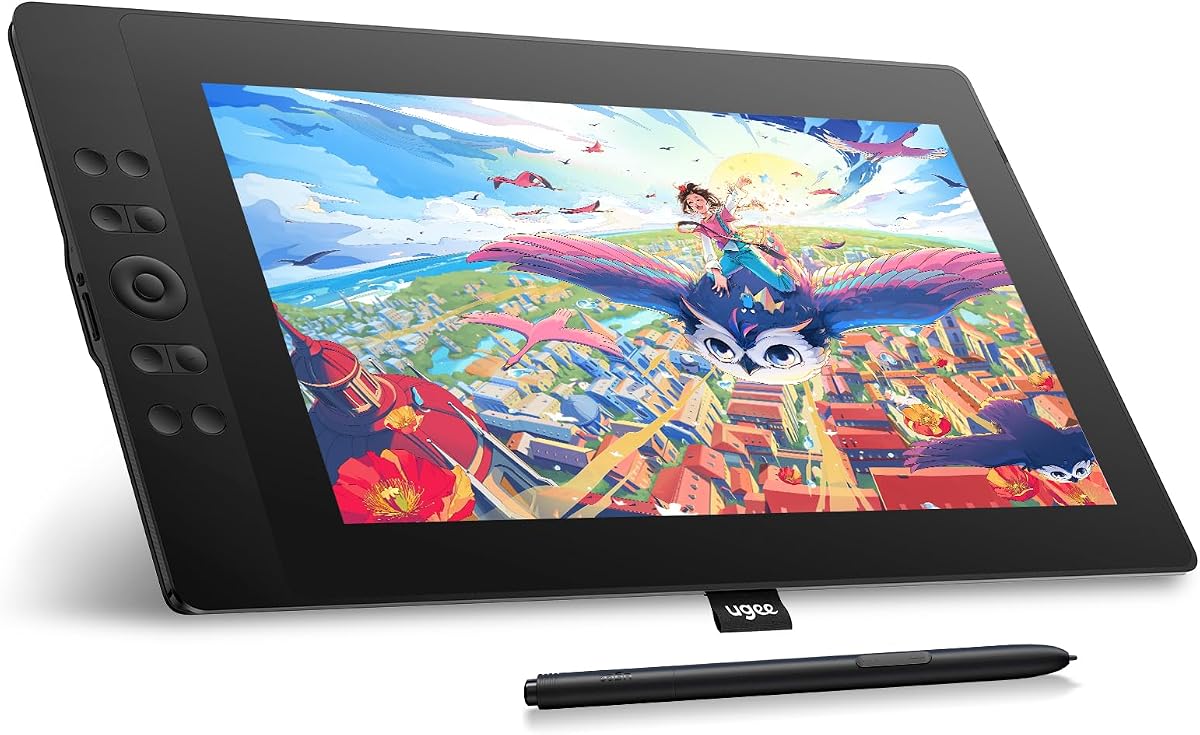
UGEE UE16 stands out with its impressive 143% sRGB color gamut making it ideal for color-critical work. The full-laminated screen reduces parallax and offers a smooth drawing surface.
We may earn a commission when you buy through this link, at no additional cost to you.
With 16K pressure sensitivity and multiple color space modes you can adapt the display to different projects. The shortcut wheel allows quick transitions between four preset functions.
Note that the 3-in-1 cable is packed separately so check your box carefully before starting. You will need HDMI and USB ports which may require adapters on modern laptops.
For artists prioritizing vibrant color reproduction this model delivers stunning visuals at a competitive price. It is a strong choice for designers and digital painters.
Switch between sRGB and Adobe RGB to match project requirements.
16K levels ensure every stroke translates with flawless detail.
We may earn a commission when you buy through this link, at no additional cost to you.
VEIKK VK1200 is designed for beginners seeking a straightforward and accessible pen display. Its 11.6-inch LED screen offers a comfortable workspace for learning digital art basics.
We may earn a commission when you buy through this link, at no additional cost to you.
Included accessories like extra pens and nibs allow you to experiment freely without extra cost. The tilt function adds depth to your strokes while the 6 keys provide essential shortcuts.
This model does not have advanced color specs but it is perfect for sketching and practice. Just ensure your laptop has HDMI ports to connect it properly.
If you are new to digital drawing this affordable kit with all the essentials you need. It is a friendly option for students and casual artists.
Includes two pens and many replacement nibs for long use.
The included glove keeps hands clean while drawing for hours.
We may earn a commission when you buy through this link, at no additional cost to you.
RubensTab T11 Pro is unique as a standalone tablet that does not require a computer. Its 10.1-inch Full HD screen offers vibrant colors for sketching on the go.
We may earn a commission when you buy through this link, at no additional cost to you.
Built-in apps let you start creating immediately while the 5800mAh battery supports up to five hours of continuous work. Multi-touch gestures help navigate interfaces easily.
Since it runs on its own OS you cannot use professional desktop software like Photoshop. However it is great for note taking and simple illustration anywhere.
This tablet is ideal for those who prioritize mobility over professional software. It is a convenient tool for students and casual users.
Create anywhere without carrying a laptop or heavy cables.
Power on and start drawing with pre-installed tools.
We may earn a commission when you buy through this link, at no additional cost to you.
VEIKK VK1200V2 boosts performance with 16384 pressure levels and 120% sRGB coverage. Its full-laminated design reduces parallax for precise and comfortable drawing.
We may earn a commission when you buy through this link, at no additional cost to you.
The lightweight aluminum chassis makes it easy to carry while two pens provide backup options. Shortcut keys allow you to customize your workflow for different software.
You must connect this to a PC or Mac but the driver support is strong and updates are frequent. Tilt support enhances the natural feel of your strokes.
For users wanting high specs without paying premium prices this model offers excellent value. It is a solid choice for daily creative work.
16384 levels capture every nuance of your line weight.
Weighing only 1.78 lbs it fits easily in backpacks.
We may earn a commission when you buy through this link, at no additional cost to you.
XPPen Artist 12 Pro Lite simplifies connection with a built-in 3-in-1 cable that eliminates the need for adapters. The full-laminated display ensures your pen tip stays aligned with the cursor.
We may earn a commission when you buy through this link, at no additional cost to you.
It supports up to 60-degree tilt and includes a red dial plus eight shortcut keys for essential controls. This model works across Windows Mac Chrome OS and Linux.
While pressure sensitivity is standard at 8192 levels the overall usability and ease of setup are strong. It is great for online classes or presentations.
If you want a hassle-free connection and reliable performance this model is a smart pick. It is ideal for educators and casual artists.
No adapters or extra cables needed to start drawing.
Use live sharing to explain ideas during online sessions.
We may earn a commission when you buy through this link, at no additional cost to you.
Selecting the right pen display requires evaluating several technical features that affect your drawing experience and workflow efficiency.
Screen size determines how much canvas you have to work with. Most budget tablets offer 11.6-inch displays which fit well on desks while 13 to 15-inch options provide more room for detailed projects. Look for at least 1920×1080 Full HD resolution to ensure sharp lines and clear details.
Choose a size that matches your workspace and portability needs.
Pressure levels dictate how many variations in line weight the pen can detect. Common budget models offer 8192 levels which is sufficient for most sketching and painting tasks. Higher-end devices may reach 16384 levels for even smoother gradients.
Aim for at least 8192 levels to ensure natural stroke variation.
Color gamut represents how many colors the screen can display. 72% NTSC or 100% SRGB covers most standard creative needs while 120% or 143% SRGB offers richer tones. If color accuracy matters to your work prioritize higher gamut values.
Check for SRGB or Adobe RGB coverage to ensure vibrant results.
Most displays come with battery-free passive pens which do not need charging. Look for tilt support up to 60 degrees to add shading effects without changing tools. Some kits include extra nibs or pens for added value.
Ensure the pen is battery-free and includes tilt recognition.
Shortcut keys and dials allow quick access to tools without using the keyboard. Models range from zero to eight keys plus touch bars. Dials are useful for adjusting brush size quickly while typing.
Select a model with enough keys to fit your workflow.
Most displays require both HDMI and USB ports. Some modern models use single USB-C cables to simplify setup. Ensure your computer supports the required connections or budget for adapters.
Verify your laptop has HDMI and USB ports or supports USB-C.
Drivers enable the pen to communicate with your computer. Good brands offer frequent driver updates and support popular software like Photoshop Illustrator or Krita. Check reviews for driver stability and customer support.
Look for strong driver support across your preferred software.
A metal chassis or sturdy plastic ensures durability during travel. Screen protection like anti-glare film reduces glare and fingerprints. Brands typically offer one-year warranties and technical support.
Choose a model with solid build materials and warranty support.
Set up your tablet by connecting HDMI for video and USB for data or use a single USB-C cable if supported. Install the latest drivers from the manufacturer to ensure full pen functionality.
Clean the screen regularly with a soft microfiber cloth to remove fingerprints. Use the included artist glove to prevent smudges and skin oils from affecting your drawing surface.
Store the tablet flat in its protective case when not in use. Keep the cable organized and avoid bending it tightly to maintain connection quality over time.
Most models require a computer or laptop to function as they act as secondary displays. Standalone options exist but are rare and may lack professional software support. Always check product specs to confirm if it is a standalone device.
Yes nearly all pen displays use passive battery-free pens that draw power from the tablet itself. This eliminates the need for charging and ensures uninterrupted creative sessions. Some include extra nibs for replacement.
Most budget drawing tablets support macOS versions 10.12 or later with dedicated drivers. Ensure you download the correct Mac drivers from the manufacturer. Check system requirements before purchasing.
Standard displays require HDMI and USB ports which iPads do not have without adapters. Some newer models support Android USB-C devices. Check connectivity compatibility before buying for mobile use.
These tablets work with industry standard apps like Photoshop Illustrator SAI and free tools like Krita or MediBang. Drivers enable the software to recognize pressure sensitivity. Ensure you install the drivers first.
Parallax occurs when the pen tip does not align with the cursor. Full-laminated screens reduce this significantly. Also calibrate your pen via the driver to align the cursor precisely.
Yes budget tablets are excellent for beginners learning digital art. They offer essential pressure sensitivity and shortcut keys without the high cost. Many include gloves and extra nibs to help new users.
Use a soft microfiber cloth to wipe the screen gently. Avoid chemical cleaners that might damage the anti-glare coating. Keep liquids away from ports and edges to prevent electrical damage.
The XP-PEN Artist12 leads our list with its balance of color accuracy and affordability while the VEIKK VK1200 V2 is perfect for tight budgets. The HUION Kamvas 13 Gen 3 stands out for professional color work.
Focus on screen size connectivity and pressure sensitivity that matches your workflow. Larger screens offer more space but add bulk. Single USB-C connectivity simplifies setup for modern laptops.
Prices and availability change frequently so check current listings before finalizing your purchase. A reliable pen display can significantly improve your digital creativity when paired with the right software.