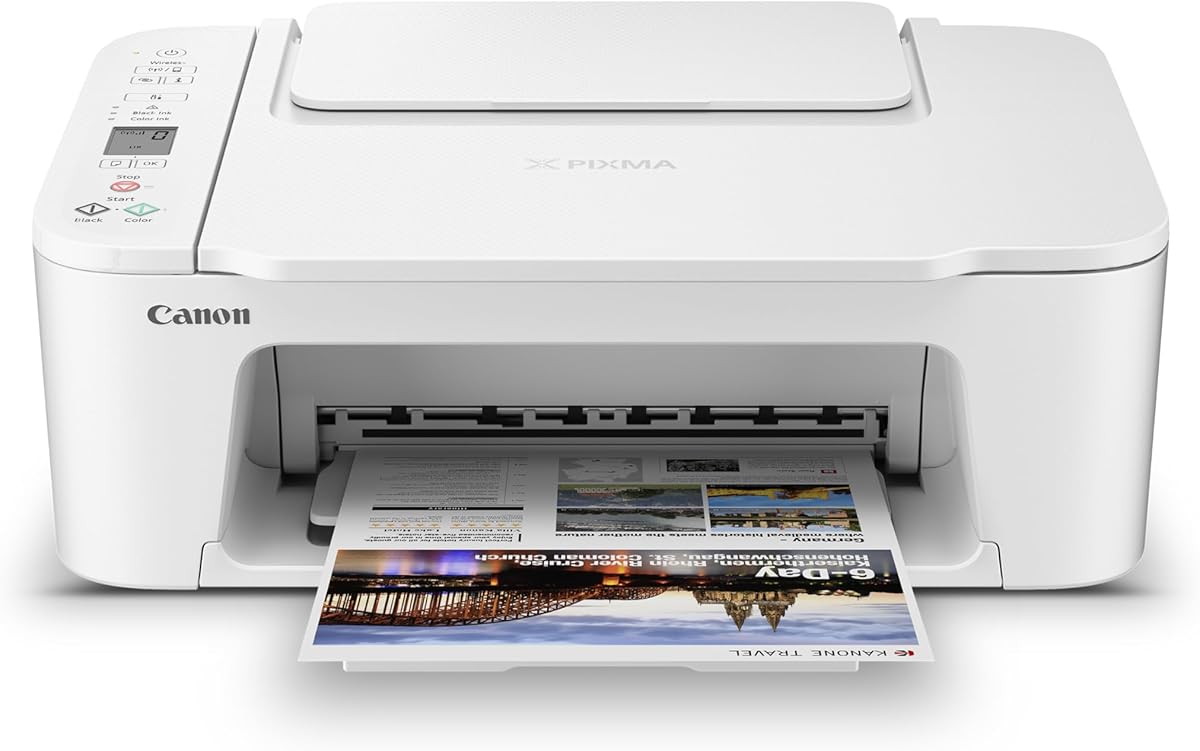
Canon PIXMA TS3720
4.0Editor score
Easy wireless setup
Mobile device printing
Compact home design
Finding a reliable Chromebook compatible printer is essential for students and home office workers who need seamless wireless printing without complex driver installations. Modern printers offer cloud connectivity and mobile app support that pair perfectly with Chrome OS devices for hassle-free document management.
We evaluated ten top-rated models based on their wireless stability, print quality, and ease of setup with Chromebooks. Each product was analyzed for its ability to handle everyday printing tasks while maintaining a compact footprint suitable for small desks and shared workspaces.
Each pick in this list showcases key strengths and potential limitations to help you make an informed decision for your specific workflow. Please note that product availability and pricing can change frequently so always verify current details before making your final purchase decision today.
4.0Editor score

4.2Editor score

4.1Editor score
As an Amazon Associate we earn from qualifying purchases.
This side-by-side comparison highlights the core specifications and unique selling points of each selected printer to help you quickly identify which model aligns best with your specific Chromebook printing needs and budget constraints.


The Canon PIXMA TS6520 stands out as the top choice for Chromebook users seeking a balance of performance and design. With a rating of 4.2 stars, it delivers crisp vibrant prints and offers seamless integration with Chrome OS through standard wireless protocols without requiring complex driver installations for daily use.
We may earn a commission when you buy through this link, at no additional cost to you.
Its dual-band Wi-Fi ensures stable connections even in busy home networks while the automatic duplex printing saves paper during heavy document sessions. The hybrid ink system produces sharp text and vivid photos making it ideal for both school assignments and personal creative projects requiring high fidelity output quality.
While the 60-sheet input tray may require frequent refills during large batch printing tasks the compact design fits neatly on most desks without sacrificing essential features. The OLED display provides clear visibility of ink levels and printer status allowing users to monitor operations efficiently without relying solely on smartphone apps for feedback.
This model is perfect for students and hybrid workers who need reliable everyday printing with minimal setup hassle. We recommend it for those who prioritize print quality and connectivity stability over massive paper handling capabilities in a dedicated home office environment.
Chrome OS devices recognize this printer automatically allowing you to print documents and photos directly through the system settings without additional software downloads or driver configurations.
The two-cartridge hybrid ink setup ensures sharp black text for documents while maintaining rich color saturation for photos without the complexity of managing multiple ink tanks.
We may earn a commission when you buy through this link, at no additional cost to you.
The Canon PIXMA TS3720 offers exceptional value for budget-conscious users needing a reliable Chromebook compatible printer. Rated at 4.0 stars it handles everyday printing tasks with ease and connects wirelessly to Chrome OS devices without frustrating setup hurdles making it ideal for students and light home office use cases.
We may earn a commission when you buy through this link, at no additional cost to you.
Its stable dual-band Wi-Fi connection ensures you can print from anywhere in your home while the 1.5-inch LCD screen provides intuitive controls for basic operations. The ability to print 5×5 inch square photos adds versatility for sharing memories without needing professional lab services for small photo prints at home.
Although it lacks automatic double-sided printing the manual duplex option still allows for paper savings when needed. The compact design ensures it fits into small spaces and the straightforward interface means even non technical users can manage printing tasks efficiently without reading extensive documentation manuals.
Choose this model if you want a cost-effective solution that works reliably with your Chromebook for standard documents and occasional photo prints. It is an excellent entry-level choice that balances functionality and price for households with moderate printing demands and limited desk space availability.
Priced lower than many competitors this printer delivers solid print quality and wireless connectivity without sacrificing essential features needed for everyday home and school printing tasks.
The streamlined setup process gets you printing within minutes using the Canon PRINT app or direct wireless configuration which simplifies onboarding for new users without technical expertise.
We may earn a commission when you buy through this link, at no additional cost to you.
The HP Envy 6155 represents a premium option for Chromebook users who demand high-quality outputs and smart features. With a 4.1 star rating it combines robust performance with intelligent tools like AI-powered print optimization that ensures web pages and emails print cleanly without wasted space or awkward layout issues on standard paper.
We may earn a commission when you buy through this link, at no additional cost to you.
The large 2.4-inch touchscreen makes navigation effortless allowing you to adjust settings or check status directly on the device. Its True-to-Screen technology ensures that printed colors match what you see on your Chromebook display which is particularly useful for creative projects where color accuracy is critical for final outcomes.
While the higher price reflects its advanced capabilities the included Instant Ink trial offers convenient ink management that keeps you printing without interruptions. The automatic duplex printing and fast 10 ppm black speed make it efficient for handling larger document volumes while maintaining consistent professional quality throughout long print jobs.
This printer is best suited for users who want a sophisticated all-in-one experience with premium materials and smart technology. Invest in this model if you prioritize interface design and color fidelity over basic functionality and are comfortable with subscription services for ongoing ink supply management needs.
Built-in artificial intelligence analyzes content before printing to remove unwanted elements and optimize layouts ensuring your documents look professional without manual formatting adjustments in your Chromebook browser.
HP's True-to-Screen technology guarantees that your printed photos and graphics match the vibrant colors seen on your digital screen reducing guesswork for visual projects requiring precise color reproduction.
We may earn a commission when you buy through this link, at no additional cost to you.
The HP DeskJet 2955 is a solid choice for basic home printing needs with Chromebook compatibility built into its core functionality. While it holds a 3.7 star rating it offers practical features like wireless printing and AI-assisted formatting that help streamline the printing process for everyday documents and homework assignments.
We may earn a commission when you buy through this link, at no additional cost to you.
Its compact design fits well in smaller spaces while the intuitive control panel simplifies basic operations for users who prefer straightforward interfaces. The 60-sheet input tray provides enough capacity for small batches of printing and the dual-band Wi-Fi ensures you maintain a stable connection to your Chromebook for consistent output without drops.
The inclusion of AI capabilities means you can expect cleaner layouts when printing from web pages which saves paper and improves readability. However the basic control interface may lack some advanced customization options found in higher-end models making it best suited for users who prioritize simplicity over extensive feature sets.
Consider this printer if you need a reliable and affordable solution for essential printing tasks without needing advanced photo or document handling features. It works well for families or students who want a straightforward device that handles standard jobs effectively without complex configuration requirements.
HP AI removes unnecessary elements like ads or sidebars before printing ensuring that your documents appear clean and focused on the content you actually need to save paper and effort.
Made with significant recycled plastic content this printer supports sustainability goals while maintaining performance reliability for typical home office printing needs and everyday document production tasks.
We may earn a commission when you buy through this link, at no additional cost to you.
The Canon PIXMA TR4720 brings advanced features like a built-in fax and auto document feeder to the home office environment making it versatile for users who need more than just basic printing with their Chromebook. With a 3.9 star rating it balances utility and performance for households managing multiple document types regularly.
We may earn a commission when you buy through this link, at no additional cost to you.
The 100-sheet paper capacity reduces the need for frequent refills which is helpful for busy periods when printing resumes or homework packets. Voice-enabled reordering via Alexa ensures you never run out of ink unexpectedly allowing you to focus on work without interruptions caused by low ink levels during critical tasks.
While the print speed is slower compared to some competitors the convenience of scanning multiple pages at once with the auto document feeder compensates for this limitation in many home use cases. This model is ideal if you need multifunctional capabilities that support both digital and physical document management workflows seamlessly.
Select this printer if you value faxing and scanning efficiency alongside standard printing tasks. It is a strong contender for users who want a comprehensive all-in-one solution that handles various document needs without requiring separate devices for every function in your workspace setup.
The integrated fax function allows you to send and receive documents directly from the printer which is still essential for certain business or administrative tasks that require traditional communication methods for records.
Connecting to Alexa lets you check ink levels and place reorder requests using voice commands streamlining maintenance tasks and keeping your printer ready for action without manual intervention.
We may earn a commission when you buy through this link, at no additional cost to you.
The Brother Work Smart 1360 offers impressive speed with up to 16 pages per minute in black making it a strong contender for users who need quick output from their Chromebook. While rated at 3.8 stars its performance in handling volume and speed makes it suitable for small office environments where efficiency matters daily.
We may earn a commission when you buy through this link, at no additional cost to you.
Support for cloud apps like Google Drive and Dropbox allows you to print documents directly from the cloud without downloading them to your Chromebook first. The 150-sheet paper tray reduces refill frequency and the mobile Connect app provides control over printing tasks remotely when you are not sitting at the desk.
Although the color quality is not as vibrant as some Canon models the speed and reliability make it a practical choice for text-heavy documents and school assignments. The multiple connection options including USB provide flexibility if wireless networks experience temporary issues or interruptions during critical printing times.
Choose this printer if speed and cloud integration are your top priorities for document processing. It works well for users who need to produce large volumes of text documents quickly and want to maintain flexibility in how they connect their devices to the machine.
Direct integration with major cloud services lets you send files to the printer from any browser tab making it easy to print homework or reports without saving them locally first.
A 150-sheet tray means you can handle multi-day printing jobs without constant refills which is beneficial for busy weeks when multiple assignments require printing simultaneously.
We may earn a commission when you buy through this link, at no additional cost to you.
The Canon PIXMA TR7120 earns a high 4.3 star rating for its efficient design and reliable performance with Chromebook devices. It combines automatic duplex printing with an auto document feeder which saves significant time when processing multi-page documents that need to be scanned or copied digitally.
We may earn a commission when you buy through this link, at no additional cost to you.
The OLED display screen makes it easy to monitor ink levels and printer status at a glance. This intuitive control panel simplifies settings adjustments and navigation allowing you to manage print jobs with minimal learning curve even if you are not tech-savvy about printer settings and configurations.
Its compact design ensures it fits well on limited desk space while still offering professional features like dual-band Wi-Fi and diverse media support. The hybrid ink system delivers sharp text and vivid colors making it suitable for both student projects and household printing tasks requiring quality visual output.
This model is recommended for users who need a versatile all-in-one device that handles scanning and copying efficiently alongside printing. It is an excellent investment for households that regularly manage multi-page documents and want a modern interface that keeps operations streamlined and user-friendly.
The auto document feeder allows you to place multiple pages face up and scan them in one continuous pass which is ideal for reports and books needing digitization without manual page turning.
The OLED screen provides clear contrast for menus and status messages which helps you see settings and ink levels even in low light conditions around your workspace.
We may earn a commission when you buy through this link, at no additional cost to you.
The HP DeskJet 4355 balances affordability with useful features like an auto document feeder and AI printing capabilities. While it holds a 3.5 star rating it offers a good balance of functions for home users needing to scan and copy documents regularly alongside printing without needing advanced enterprise features.
We may earn a commission when you buy through this link, at no additional cost to you.
The 35-sheet auto document feeder streamlines scanning tasks making it easier to digitize multi-page documents without manual intervention. AI optimization helps clean up web printouts so your Chromebook browser views print cleanly on paper without unnecessary elements wasting page space or confusing layouts.
Its compact design and sustainable materials reflect HP's effort to build eco-friendly devices that fit modern homes. The 60-sheet input tray provides reasonable capacity for standard daily use although the speed is moderate compared to high-performance options requiring patience for large batch print jobs.
Choose this printer if you want a budget-friendly multifunctional device that handles scanning and copying well. It is suitable for casual users who need occasional automation features like the document feeder and AI formatting without paying for premium speed or build quality.
This feature allows you to load multiple pages and have them scanned or copied automatically which saves time and effort when processing homework or household documents.
Made with significant recycled plastic this printer supports environmental goals while providing reliable functionality for everyday printing tasks at home.
We may earn a commission when you buy through this link, at no additional cost to you.
The Canon PIXMA TS4320 is a solid eco-conscious choice for Chromebook users who value sustainability alongside performance. With a 4.0 star rating it delivers crisp vibrant prints and features borderless printing that allows you to create photo-quality documents without white edges for a more professional look on home projects.
We may earn a commission when you buy through this link, at no additional cost to you.
Its EPEAT Silver and Energy Star certifications indicate lower environmental impact and energy consumption which is important for users who care about sustainability. The compact design ensures it fits neatly into small spaces while the hybrid ink system provides a balance of text quality and color saturation for varied needs.
While it lacks automatic duplex printing the energy efficiency and reliable wireless connectivity make it a strong option for light to moderate daily use. The borderless capability is particularly useful for those who want to print photos without needing separate photo printers for specific small prints.
Opt for this model if you prioritize energy efficiency and environmental impact in your tech choices. It is a good fit for households that need reliable printing and photo capabilities without sacrificing space on your desk for a larger machine.
EPEAT Silver and Energy Star ratings ensure the device meets strict environmental standards for energy usage and waste reduction which helps reduce your carbon footprint at home.
The ability to print borderless photos means you can create high-quality prints without white margins which is ideal for gifts or home displays needing professional looks.
We may earn a commission when you buy through this link, at no additional cost to you.
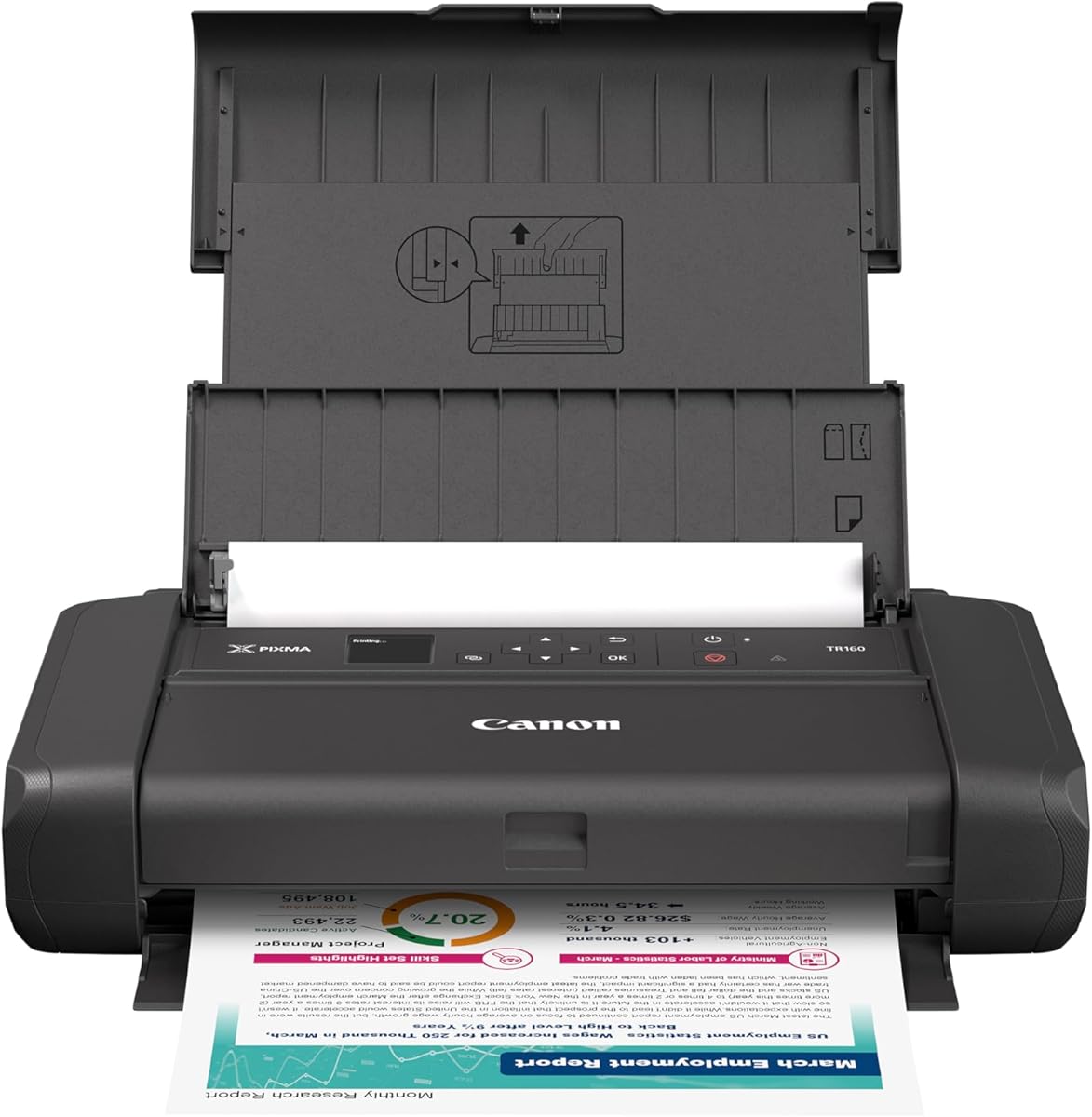
The Canon PIXMA TR160 redefines portability by fitting into a backpack while maintaining full 8.5 x 11 printing capabilities. With a 4.2 star rating it is perfect for students who need to print documents on the go without relying on shared campus facilities that might be crowded during peak hours.
We may earn a commission when you buy through this link, at no additional cost to you.
Its wireless direct mode allows you to connect directly to the printer without a router ensuring you can print from your Chromebook even in locations without internet access. The 5-color hybrid ink system delivers rich colors and sharp text which is ideal for creative work where quality matters regardless of location.
The OLED display makes checking ink and status easy on the device itself. While it lacks an auto document feeder its compact form and high print quality make it a unique option for users who prioritize mobility and professional output for presentations and projects.
Choose this printer if you travel frequently or work in different environments. It is best suited for users who need reliable printing anywhere without being tethered to a single desk location.
This feature connects your Chromebook directly to the printer via Wi-Fi without needing an external router so you can print anywhere there is power and a wireless signal.
Light enough to carry in a backpack this printer allows you to take your printing capabilities with you making it ideal for students and remote workers.
We may earn a commission when you buy through this link, at no additional cost to you.
Selecting the right printer for your Chromebook involves evaluating connectivity features paper handling and long-term operating costs to ensure seamless integration and reliability.
Ensure the printer supports standard wireless protocols such as Wi-Fi and AirPrint or Mopria which are natively supported by Chrome OS. Avoid models requiring proprietary drivers that complicate installation or limit functionality.
Aim for dual-band Wi-Fi support to maintain stable connections in busy networks and ensure you can print from anywhere within your home or office without interruptions.
Look for printers that offer a balance of speed and resolution suitable for your daily needs. Black text quality is critical for homework and reports while color accuracy matters for creative projects.
Typical home printers should achieve at least 5-10 pages per minute in black to avoid long wait times during busy study or work sessions.
Consider how much paper the printer holds and whether it supports duplex printing to save time and reduce manual intervention. Larger trays are beneficial for households with multiple users printing frequently.
If you often print multi-page documents prioritize models with an auto document feeder for scanning and copying tasks.
Understand the cost and frequency of replacing ink cartridges. Subscription services like Instant Ink may offer savings if you print consistently while traditional cartridges provide more control.
Check if the printer uses separate ink tanks or hybrid systems as this affects how long you can operate between replacements.
Evaluate the printer footprint to ensure it fits comfortably on your desk without taking up excessive workspace. A compact design is especially important for students in dorms or shared rooms.
Look for sleek designs that integrate well with your environment and consider noise levels during operation for quiet home office settings.
Determine whether you need scanning and copying features alongside printing. An all-in-one printer reduces clutter and increases versatility for home office tasks.
Prioritize models with intuitive interfaces like touchscreens or OLED displays to simplify daily operations without relying on mobile apps constantly.
Ensure the printer supports cloud printing services like Google Drive or Dropbox to print files without downloading them to your Chromebook first.
A dedicated mobile app enhances control over printing tasks and ink monitoring making it easier to manage devices remotely.
Check for a clear warranty period and availability of customer support to resolve issues quickly if connectivity or mechanical problems arise.
Reputable brands often provide better ongoing software updates which ensure compatibility with future Chrome OS changes.
Start by connecting the printer to your Wi-Fi network using the device's control panel or mobile app before attempting to print from your Chromebook. Ensure the printer appears in your Chromebook settings under connected devices to confirm successful pairing.
Regularly print test pages to prevent ink nozzles from drying out especially if the printer is used infrequently. Cleaning routines should be performed monthly to maintain print quality and avoid clogged heads that require costly replacements.
Store ink cartridges in a cool dry place and use genuine manufacturer supplies to avoid compatibility issues. Keep the printer covered when not in use to protect it from dust and debris that can interfere with mechanical components over time.
Most modern printers work with Chromebooks without installing traditional drivers by using built-in Cloud Print or Mopria support. Ensure your printer is connected to the same Wi-Fi network and select it directly in the print dialog.
Yes if your printer supports color inkjet printing and you select the correct paper type in settings. For best results use borderless printing and high-quality photo paper designed for your specific printer model.
Both are standards allowing wireless printing without drivers. AirPrint is optimized for Apple devices while Mopria is platform-agnostic making it more versatile for Chromebook and Android users seeking seamless connectivity.
Access the scanner settings in Chrome OS or use the manufacturer's mobile app to initiate scans. The scanned file will usually download to your downloads folder where you can edit or share it.
Check that the printer is connected to the same Wi-Fi network as your Chromebook. Restarting both devices and ensuring the printer firmware is updated often resolves visibility issues.
Subscriptions are cost-effective if you print consistently every month. They deliver ink before you run out but may be expensive for very light users who prefer buying cartridges as needed.
We explored ten top printers highlighting the Canon PIXMA TS6520 as the top choice for its balance of quality and connectivity. The Canon PIXMA TS3720 offers budget-friendly reliability while the HP Envy 6155 delivers premium features for advanced users.
When selecting a printer prioritize wireless stability and ease of setup to ensure smooth daily operations with your Chromebook. Consider your volume needs and whether scanning capabilities are essential for your specific workflow before purchasing.
Always check current pricing and stock availability as models change frequently. Investing in a printer that matches your daily tasks ensures better productivity and less frustration when managing home or school documents.